Sonntag, 2. Dezember 2012

Windows Phone 8– WorkTime app weekend

Normally this weekend I planned to participate a Duathlon, but because of my current cold I switch the plan and made my own Windows Phone 8 Hackathon weekend (the same as the last one).

Me as designer, programmer and product owner of the nice new app WorkTime. Windows Phone 8 development with all the fun and pains, if you want to implement pattern like MVVM straight forward. Especially this week I fight with a general validation mechanism. I will post some of my approaches to implement a very smart solution at the next days:

Validation code is than looking in the view model constructor like this:

            AddValidationFor(() => CustomerName)
               .When(x => string.IsNullOrEmpty(x._customerName))
               .Show(AppResources.InvalidNotNullOrEmpty);

            AddValidationFor(() => OrderName)
                .When(x => string.IsNullOrEmpty(x._orderName))
                .Show(AppResources.InvalidNotNullOrEmpty);

            AddValidationFor(() => ProjectHoursMax)
              .When(x => x._projectHoursMax<=0)
              .Show(AppResources.InvalidZeroNotAllowed);

            AddValidationFor(() => Start)
            .When(x => x._end <= x._start)
            .Show(AppResources.InvalidStartIsGreaterThanEnd);

Here are some screenshots of the WorkTime app (sorry in German, but English will be also supported. Besides multi language support with sharing Resources among assemblies will be another next post – I need more time :-():

wp_ss_20121202_0016wp_ss_20121202_0007wp_ss_20121202_0008wp_ss_20121202_0009wp_ss_20121202_0010

Samstag, 24. November 2012

Windows Phone 8–ListPicker SelectedItem not bindable

At this week the ListPicker is the second control with issues for binding the SelectedItem property (see http://dotnet-redzone.blogspot.de/2012/11/windows-phone-8longlistselector.html). At this time I tried a second problem solution and made the SelectedIndex my binding property. In my Viewmodel I have to define therefore a method which maps my SelectedIndex to the instance in my list which is populated in the ListPicker (the WorkTasks ObservableCollection):

private int GetWorkTaskIndexFromId(string id)
        {
            for (int index = 0; index < this.WorkTasks.Count; index++)
            {
                if (this.WorkTasks[index].UniqueId == id)
                {
                    return index;
                }
            }

            return 0;
        }

My property for the SelectedIndex in the ViewModel looks like this:

       public int SelectedWorkTaskIndex
        {
            get
            {
                return _selectedWorkTaskIndex;
            }

            set
            {
                _selectedWorkTaskIndex = value;
                if (_allowedToChangeValue && _selectedWorkTaskIndex >= 0)
                {
                    this.SelectedEntry.WorkTask = WorkTasks[value];
                }

                this.RaisePropertyChanged("SelectedWorkTaskIndex");
            }
        }

The last step was to set the SelectedWorkTaskIndex corerctly after loading the instance of my ViewModel connected model. This is done in my implementation of the LoadWorkTask RelayCommand:

        private void LoadWorkTaskList()
        {
            try
            {
                 ....
                
               _allowedToChangeValue = true;

                SetWorkTask();
               
            }
            catch (Exception error)
            {
               .....
            }
        }
        private void SetWorkTask()
        {
            if (SelectedEntry.WorkTask != null)
            {
                SelectedWorkTaskIndex = this.GetWorkTaskIndexFromId(SelectedEntry.WorkTask.UniqueId);
            }
            else
            {
                if (WorkTasks != null && WorkTasks.Count > 0)
                {
                    SelectedWorkTaskIndex = 0;
                }
            }
        }

Windows Phone 8–LongListSelector SelectedItem not bindable

Microsoft has now moved the LongListSelector to the basic phone controls, but the LongListSelector control has still the same issue as it was part of the Windows Phone Toolkit. They have forgotten to declare a DependencyObject for the SelectedItem property so you can not bind the SelectedItem property. Or maybe they want to be compatible with this bug :-)

To resolve this I decided in my current project to define a new class LongListSelector in my project namespace which is derived from the LongListSelector control. Here I can define a dependency property and a LongListSelector_SelectionChanged method to handle the binding. It is is important to declare the property in the new class as New, because we want to override the SelectedItem property in the Microsoft control.

Here is my code to do this:

public class LongListSelector : Microsoft.Phone.Controls.LongListSelector
    {
        public LongListSelector()
        {
            SelectionChanged += LongListSelector_SelectionChanged;
        }

        void LongListSelector_SelectionChanged(object sender, SelectionChangedEventArgs e)
        {
            SelectedItem = base.SelectedItem;
        }

        public static readonly DependencyProperty SelectedItemProperty =
            DependencyProperty.Register(
                "SelectedItem",
                typeof(object),
                typeof(LongListSelector),
                new PropertyMetadata(null, OnSelectedItemChanged)
            );

        private static void OnSelectedItemChanged(DependencyObject d, DependencyPropertyChangedEventArgs e)
        {
            var selector = (LongListSelector)d;
            selector.SelectedItem = e.NewValue;
        }

        public new object SelectedItem
        {
            get { return GetValue(SelectedItemProperty); }
            set { SetValue(SelectedItemProperty, value); }
        }
    }

Sonntag, 18. November 2012

Windows Phone 8–Localization of App and tile title

My current WorkTime@WP8 Windows Phone 8 should support different languages. This is a easy task for every .NET developer – Resource files are the correct answer. But what doing with the title of the app and the title of the live tiles? These Ressouces are part of the WMAppManifest.xml file, so we cannot use the normal Resource files.

The answer:

A C++ Dll project with a string table and referring the title with Title="@Sdx.WorkTime.WP8.AppResLib.dll,-100"
in the WMAppManifest.xml

(my first C++ project since 8 years)

To localize the app title, you must create the mentioned resource-only DLL, as well as separate Multilingual User Interface (MUI) files for each display language that your app targets (see screenshot).

image

After I have done this painful steps, it works great!

More details you can find here:
http://msdn.microsoft.com/en-us/library/windowsphone/develop/ff967550(v=vs.105).aspx

Windows Phone 8–WorkTime project started

This weekend I started with a new Windows Phone project – a time registration app for people who works in projects or have to report their daily work. The Windows phone app will have several data provider (local and Microsoft CRM for the first time). My colleagues at the SDX AG working on an Windows 8 Metro app (C# and XAML), which will be deployed the next weeks. Because the lack of an mobile application to check in project times and to find out what new features (main reason) are in the Windows Phone SDK, I started the WorkTime@WP8 project.

My first goal was to build a clickable prototype and here are the first screenshots:

Windows Phone 8Windows Phone 8 New appWindows Phone 8 SDX WorkTime

With Windows Phone 8 you can make screenshots by pressing the power and windows button at the same time (very nice feature).

Postings about my experience and “lessons learned” during this Windows Phone development will coming time-by-time….

Windows Phone 8–TypeScript crashes WP8 Debugger

TypeScript 0.8.1 is now available and bring us the long desired Source Level Debugging. That means debugging directly the TypeScript​ source files :-)

http://blogs.msdn.com/b/typescript/archive/2012/11/15/announcing-typescript-0-8-1.aspx

Nice feature, BUT!!!!!!! NOT FOR WINDOWS PHONE DEVELOPERS:

I spend today several hours with installing and reinstalling Visual Studio 2012 and the new Windows Phone 8 SDK, because if I attached a debugger to my Windows Phone project the Visual Studio will be crashed. deactivating and reinstalling several extensions for Visual Studio 2012 it was TypeScript which causes the crashes of Visual Studio 2012

Sad smile

Montag, 5. November 2012

Windows Phone 8–Tiles and lock screen notification

The new Windows Phone 8 comes with 3 types of live tiles, represented by the following classes:

  • FlipTileData – this is the regular live tile that we are used to seeing in Windows Phone 7
  • IconicTileData – similar to the FlipTile but follows more closely the Windows Phone design principles and displays an icon instead of an image
  • CycleTileData – can cycle up to 9 images, similar to the Pictures live tile Windows Phone 8 Large Tile
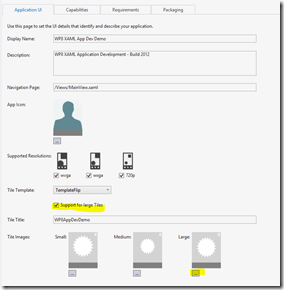
Live tiles now also come in three sizes: small, medium and large. You can control if your primary tile supports the large size in the WMAppManifest.xml file (see screenshot).

Additional it is now possible for apps to display notifications on the lock screen. The information comes from the primary tile and you can enable this feature by editing the WMAppManifest.xml file. When this functionality is enabled, the user can select your app as notification app in the phone settings page. After this your primary tile notifications (the counter) will be shown at the lock screen with the referenced image in DeviceLockImageURI of your WMAppManifest.xml file.

The tile size is selected by the user from the start screen, but you can control which sizes your app supports. For a good user experience you should provide a separate image for each size.

The required images sizes are:

Flip and Cycle

Iconic

Small

159 × 159 px

110 × 110 px

Medium

336 × 336 px

202 × 202 px

Wide

691 × 336 px

N/A

You can create or update a tile using either XML or code. There is no way to know which tile size your customer has pinned to the start screen, so you should include all elements. The initial template is defined in the WMAppManifest.xml, but you can change the tile content at runtime.

Change the primary tile

Sample to change the counter or background text of the primary tile:

 FlipTileData primaryTileData = new FlipTileData();
 primaryTileData.Count = count;
 primaryTileData.BackContent = content;
 ShellTile primaryTile = ShellTile.ActiveTiles.First();
 primaryTile.Update(primaryTileData);

SecondaryTile

The most common way to create or update a tile is to use the FileTileData, IconicTileData or CycleTileData classes. As example here is a FlipTileData class to create a tile with an additional back  side.

       private ShellTileData CreateFlipTileData()
        {
            return new FlipTileData()
            {
                Title = "Flip Tile",
                BackTitle = "This is a flip tile",
                BackContent = "Second line of medium size",
                WideBackContent = "Second line of wide size",
                Count = 10,
                SmallBackgroundImage = new Uri("/Assets/Tiles/FlipTileSmallBackground.png", UriKind.Relative),
                BackgroundImage = new Uri("/Assets/Tiles/FlipTileBackground.png", UriKind.Relative),
                BackBackgroundImage = new Uri("/Assets/Tiles/FlipTileSmallBackBackground.png", UriKind.Relative),
                WideBackgroundImage = new Uri("/Assets/Tiles/FlipTileWideBackground.png", UriKind.Relative),
                WideBackBackgroundImage = new Uri("/Assets/Tiles/FlipTileWideBackBackground.png", UriKind.Relative)
            };
        }
Then you can create a secondary tile by:
            Uri tileUri = new Uri(string.Concat("/MainPage.xaml?", "tile=second"), UriKind.Relative);
            ShellTileData tileData = this.CreateFlipTileData();
            ShellTile.Create(tileUri, tileData, true);
To switch the style of the secondary tile you can use
ShellTile shellTile = ShellTile.ActiveTiles.FirstOrDefault(tile => tile.NavigationUri.ToString().Contains(partOfUri));
to find the tile and the before create the new tile type, delete the old one with shellTile.Delete.

An alternative way to initialize the FlipTemplateData object, is to provide it with a string that is an XML, containing all the data needed for the template. If you have read the content (for example as resource or getting it via push notification), you can create a new FlipTileData with this string as parameter in the contructor.

<?xml version="1.0"?>
<wp:Notification xmlns:wp="WPNotification" Version="2.0">
  <wp:Tile Id="[Tile ID]" Template="FlipTile">
    <wp:SmallBackgroundImage [Action="Clear"]>[small Tile size URI]</wp:SmallBackgroundImage>
    <wp:WideBackgroundImage Action="Clear">[front of wide Tile size URI]</wp:WideBackgroundImage>
    <wp:WideBackBackgroundImage Action="Clear">[back of wide Tile size URI]</wp:WideBackBackgroundImage>
    <wp:WideBackContent Action="Clear">[back of wide Tile size content]</wp:WideBackContent>
    <wp:BackgroundImage Action="Clear">[front of medium Tile size URI]</wp:BackgroundImage>
    <wp:Count Action="Clear">[count]</wp:Count>
    <wp:Title Action="Clear">[title]</wp:Title>
    <wp:BackBackgroundImage Action="Clear">[back of medium Tile size URI]</wp:BackBackgroundImage>
    <wp:BackTitle Action="Clear">[back of Tile title]</wp:BackTitle>
    <wp:BackContent Action="Clear">[back of medium Tile size content]</wp:BackContent>
  </wp:Tile>
Windows Phone 8 Lock Screen Notification</wp:Notification>

Lock screen Notifications

Windows Phone 8 now allows the user to select the applications from which to receive notifications on the lock screen. The information that is displayed on the lock screen actually comes from the app’s primary tile. In order to enable lock screen notification for your app you have to edit the WMAppManifest.xml file and change the Extensions element (which follows the Tokens element) to include the following structure:

   <Extensions>
      <Extension ExtensionName="LockScreen_Notification_IconCount" ConsumerID="{111DFF24-AA15-4A96-8006-2BFF8122084F}" TaskID="_default" />
      <Extension ExtensionName="LockScreen_Notification_TextField" ConsumerID="{111DFF24-AA15-4A96-8006-2BFF8122084F}" TaskID="_default" />
    </Extensions>

If the user choose your app in the Windows phone 8 settings page as lock screen notification app your primary tile updates (for example by a backgound agent) will be pushed to the lock screen.

The icon for the lock screen will be defined at the WMAppManifest.xml file.

Updating Primary tile via Background agent

To update the content of a primary or secondary tile you need a background agent, which also updates the notification displayed on the lock screen. To create a new background agent we are using the “Windows Phone Scheduled Task Agent” project template. Then in the OnInvoke method we will update in the sample snipplet the primary tile of our app.

To connect your application with the new background agent it is only necessary to add a reference in the app project to the “Windows Phone Scheduled Agent” project.

       protected override void OnInvoke(ScheduledTask task)
        {
            //TODO: Add code to perform your task in background
            System.Random randomCount = new System.Random(); 
            int count = randomCount.Next(10, 90); 
            string content = string.Format("{0} posts waiting for you!", count);
            UpdatePrimaryTile(count, content); 
            #if DEBUG 
                ScheduledActionService.LaunchForTest( task.Name, TimeSpan.FromSeconds(30));
            #endif
            NotifyComplete();
        }
To force the background agent during debugging you can use the LaunchForTest method.